Free Image to SVG Converter
PROJECT
Drop an image here
or click to browse · PNG JPG GIF BMP WebP
SVG Output
Drop an image to vectorize
Original
Original image preview
100%
Drop an image here
or click to browse · PNG JPG GIF BMP WebP
Drop an image to vectorize
Original image preview
The Vextrude Image to SVG Converter is a free browser-based vectorizer that turns PNG, JPG, GIF, BMP, and WebP images into clean, infinitely scalable SVG paths. It traces contours into real vector shapes — with control over colour count, detail, smoothing, and cleanup — then exports SVG, PNG, or copy-ready code. Tracing runs in a Web Worker on your own device, so your images are never uploaded to a server.
Convert PNG to SVG, JPG to SVG, and other raster images into clean, scalable vector paths directly in your browser. No uploads, no signup, no watermarks.
Images never leave your device. All vectorization happens in your browser using Canvas API and Web Workers for maximum privacy and speed.
Black & White silhouettes, multi-color tracing up to 32 colors, grayscale layers, Sobel edge detection, and posterize — all with real-time preview.
Convert any raster format to SVG. Paste from clipboard, drag & drop, or browse — then download clean vector SVG or send directly to the 3D converter.
Tracing runs in a dedicated Web Worker thread so the UI stays responsive. Large images are automatically scaled for near-instant results.
Toggle individual color layers on or off, change any layer’s color with the built-in picker, delete unwanted layers, and undo/redo every edit.
Send your traced SVG straight to the Vextrude 3D converter to extrude it into a printable STL, OBJ, or GLB model in one click.
Four steps from raster image to clean vector paths — all in your browser.
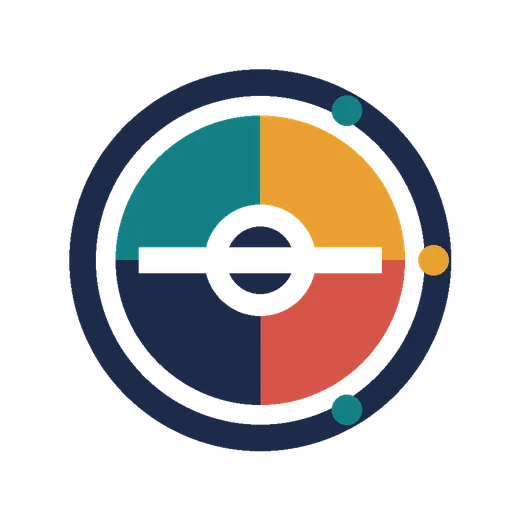
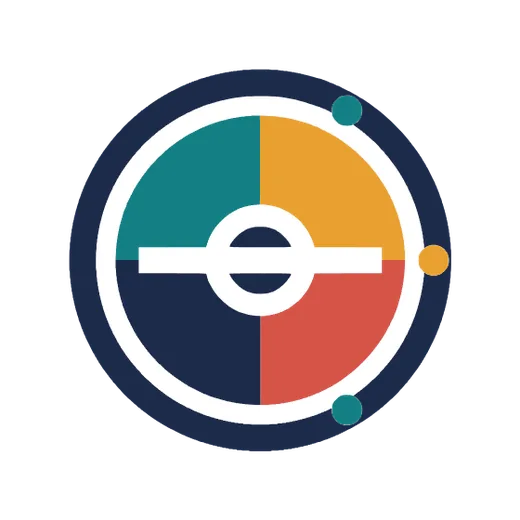
A 900×900 PNG on the left, the traced SVG on the right. The vector version is resolution-independent — the same file stays sharp on a business card and on a billboard — and it arrives as five separate colour layers you can recolour or delete one at a time.
What vectorization actually does to your pixels.
Image tracing — also called vectorization, raster to vector conversion, or bitmap tracing — converts pixel-based images into resolution-independent vector paths. Unlike PNG or JPG files that become blurry when enlarged, SVG vector graphics stay perfectly sharp at any scale, making them ideal for:
Inside the contour-extraction pipeline.
This tool uses a contour-extraction pipeline similar to Potrace. The process works in four stages:
The entire pipeline runs in a Web Worker thread so your browser stays responsive even with large, complex images.

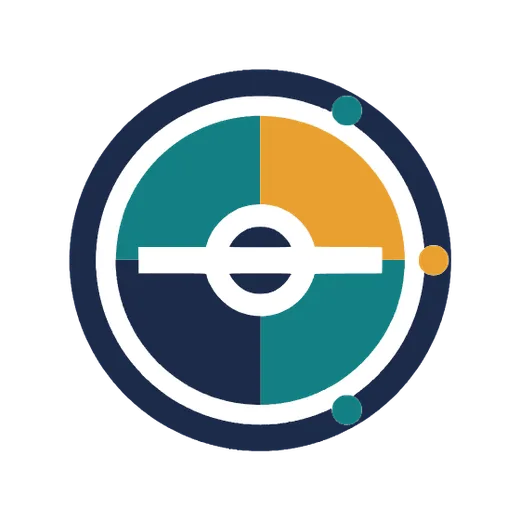
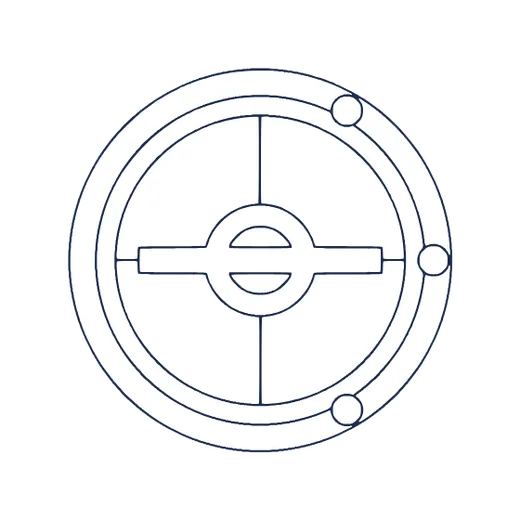
Four of the five tracing modes, same source image. The fifth, Posterize, reduces the palette before tracing; flat artwork like this already has few enough colours that it passes through unchanged, so the colour-count slider only bites on photographs and gradients.
Turning transparent PNGs into crisp, scalable vectors.
PNG is the best format for SVG conversion because PNG uses lossless compression, preserving sharp edges and clean color boundaries — exactly what a vectorizer needs to trace smooth, accurate paths. Common PNG-to-SVG use cases include:
For best results: use B&W mode for single-color logos, Color mode for multi-color artwork, and lower the Simplification slider for complex paths. Most PNG files convert cleanly with default settings — no adjustments needed.
Getting clean vectors out of lossy JPEG photos.
JPG and JPEG files are fully supported. Because JPEG uses lossy compression, the best results come from smoothing out artifacts before tracing. Common JPG-to-SVG use cases:
Tips for JPG to SVG: raise the Blur slider to 1–3 to suppress JPEG compression noise, reduce Colors to 8–16, and increase Min Area to filter out small artifact fragments. Edge Detection mode also works exceptionally well on JPEG photos for clean outline results.
Which source format traces better, and why.
PNG images generally produce the best SVG results because PNG uses lossless compression, preserving sharp edges and clean color boundaries. Logos, icons, and illustrations saved as PNG trace very cleanly.
JPG images use lossy compression, which introduces compression artifacts — especially around edges. These artifacts can create noisy SVG paths. To get better results from JPG, increase the Blur slider to smooth out artifacts and raise Min Area to remove small fragments.
Both formats are fully supported. For photographs, Color mode with 8–16 colors and moderate simplification produces the best artistic vectorized output.
How the browser tracer stacks up against desktop tools.
Adobe Illustrator’s Image Trace is powerful but requires a paid subscription and desktop installation. The Vextrude Image to SVG Converter offers a compelling free alternative:
For quick conversions, logo vectorization, and 3D printing workflows, Vextrude is faster and more accessible than desktop tools.
Cut-ready vectors for Cricut, Silhouette, and laser cutters.
Converting images to SVG is essential for Cricut, Silhouette Cameo, and laser cutter users — cutting machines require vector SVG files, not raster images. With the free Vextrude Image to SVG Converter, you can:
Use B&W mode for crisp single-layer cut files, or Color mode for multi-layer projects. The SVG output works directly in Cricut Design Space, Silhouette Studio, LightBurn, and most cutting and engraving software — no conversion needed.
Rescuing a low-res logo into a sharp, reusable vector.
Logo vectorization converts a raster logo (PNG or JPG) into a scalable SVG that stays crisp at any size — from business cards to billboards. To get the best result from a logo:
The resulting SVG is infinitely scalable and ready for use in web pages, print documents, embroidery software, or further editing in Inkscape or Adobe Illustrator.
Drop in any common raster image and get back scalable vector output — every conversion happens locally in your browser.
Transparency
Lossless raster with an alpha channel — the cleanest source for logos and icons.
Photographic
Lossy photos. Raise Blur and Min area to suppress compression artefacts.
Indexed & bitmap
Flat, low-colour sources that trace into very tidy paths.
Modern web
Google’s compact web format, traced just like PNG or JPG.
Common questions about vectorizing images to SVG.
Yes. You can use the Vextrude Image to SVG Converter for both personal and commercial projects with no account, watermark, or hidden limits. It will always be free.
No. All tracing runs entirely in your browser using the Canvas API and Web Workers. Images are never uploaded to a remote server, keeping your files completely private and secure.
Simply drag and drop your PNG file onto the converter, or click the drop zone to browse your files. The tool will automatically trace the image and display the SVG result. Adjust settings as needed, then click Download SVG.
Yes. JPG/JPEG files are fully supported. For best results with JPG, increase the Blur slider slightly to smooth out compression artifacts, and use a higher Min Area value to filter noise.
B&W mode converts the image to grayscale and applies a threshold to create a single-color silhouette — perfect for logos and icons. Color mode uses median-cut quantization to extract up to 32 color layers, each traced as a separate SVG path with its own fill color — ideal for illustrations and detailed artwork.
Edge Detection applies a Sobel filter to the image to extract outlines and contours. It produces SVG paths that trace the edges of objects rather than filling color regions. Use the threshold slider to control edge sensitivity.
Yes. In Color, Grayscale, and Posterize modes, the Layers panel shows each traced color as a separate layer. You can toggle visibility, change any layer’s color using the built-in color picker, or permanently delete a layer. All edits support full undo/redo with Ctrl+Z and Ctrl+Y.
Absolutely. Export your SVG here, then click “Send to SVG → 3D” to open it in the Vextrude SVG to 3D Converter. There you can extrude it into a watertight STL, OBJ, or GLB model ready for 3D printing.
For quick conversions, logo vectorization, and privacy-sensitive workflows, Vextrude is faster and more accessible — it’s free, instant, and runs entirely offline in your browser. For complex professional illustration work with advanced fine-tuning, Illustrator offers more control but requires a paid subscription.
PNG, JPG/JPEG, GIF, BMP, and WebP are all supported. You can also paste images directly from your clipboard using Ctrl+V (or Cmd+V on Mac).
Upload the logo image, select B&W mode for single-color logos or Color mode for multi-color logos. Adjust the threshold and simplification sliders until the SVG matches the original cleanly. For logos with transparent backgrounds, the converter automatically fills transparency with white.
Yes. Use Color mode with 16–32 colors for a detailed vectorized version, or use fewer colors for an artistic, posterized effect. Photographs produce stylized vector art rather than photorealistic reproductions, which is perfect for illustrations, posters, and creative projects.
Yes. Click Remove Background after uploading and the tool erases the background so you trace only the subject. The exported SVG has a real transparent background, which is ideal for logos, product shots, and stickers. Background removal runs entirely in your browser.
Yes. The Animation Studio turns any traced image into a self-animating SVG with draw-on, pop, rise, fade, spin, or wipe effects, plus adjustable speed, looping, and play-on-hover. The animation is pure CSS baked into the file, so it plays anywhere, even inside an img tag.
Yes. The Sticker option adds a die-cut white outline and soft drop shadow around your traced artwork, producing print-ready sticker SVG and PNG files for Cricut, Silhouette, and label printers.