Drop STL, GLB, OBJ, 3MF, or PLY file here
or click to browse — model will be placed on printer bed
Layer 0 / 0
Print Control is a free online 3D print slicer that runs entirely in your browser — no installation, account, or upload required. It converts STL, OBJ, 3MF, PLY, and GLB models into printer-ready G-code, with layer-by-layer slice preview, adjustable layer height and infill, support generation, and presets for popular FDM printers like Ender 3, Prusa, Bambu Lab, and Voron. Your files are processed locally on your device and never sent to a server.
Go from 3D model to printer-ready G-code in four simple steps — entirely in your browser.
Drop an STL, GLB, OBJ, 3MF, or PLY file — or send directly from the SVG to 3D converter using the Print button.
Select your printer, set layer height, infill density, temperatures, supports, and adhesion type.
Scrub through every layer of your print with the real-time slice preview. Play animations at variable speeds.
Generate printer-ready G-code with perimeters, infill, and temperature controls — download and print.
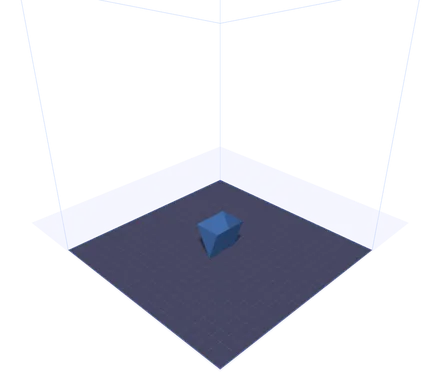
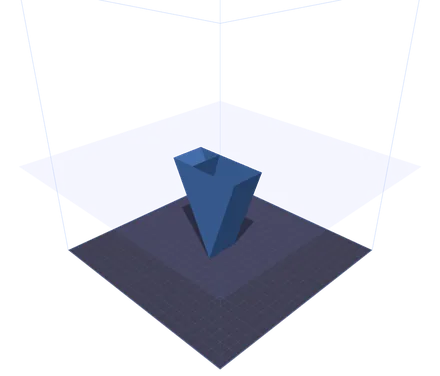
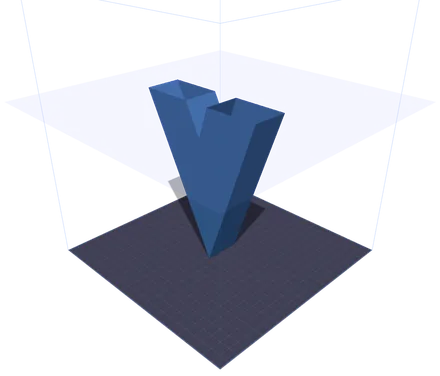
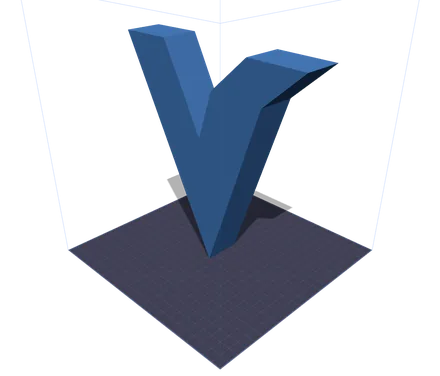
The same model at four points in the print. The translucent plane is the height the nozzle has reached — everything above it is hidden. Near the top the cross-section splits into two separate islands, the two arms of the V, and that is where a slicer has to start planning travel moves between them. Scrubbing the slider is how you find that before you commit the filament, not after.
A complete browser-based print preparation tool with real-time 3D visualization and instant G-code generation.
See your model placed on an accurate 3D printer bed with grid lines. Supports Ender 3, Prusa i3, Bambu Lab X1, Voron 2.4, and custom bed dimensions.
Fine-tune layer height, nozzle diameter, print speed, infill density and pattern, nozzle and bed temperatures, support structures, and adhesion type.
Scrub through your print layer by layer with a real-time GPU-accelerated clipping plane. Animated playback at 1x, 2x, or 5x speed to inspect every detail.
Generate complete G-code files with start/end sequences, perimeter tracing, grid infill, and proper extrusion calculations. Download and send straight to your printer.
Click the Print button in the SVG to 3D converter and your model transfers instantly via IndexedDB — no downloads, no re-uploads needed.
No installation, no cloud uploads. Everything runs locally in your browser using WebGL and Three.js. Your files never leave your machine.
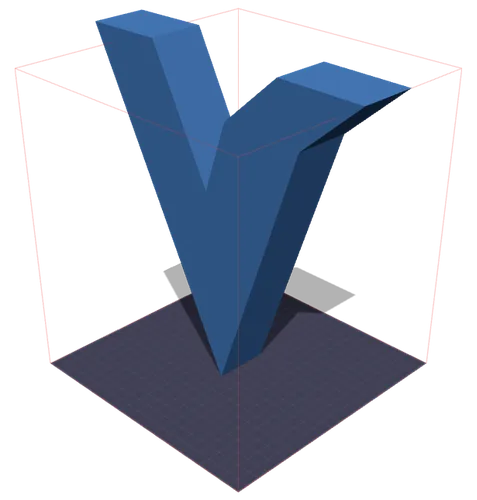
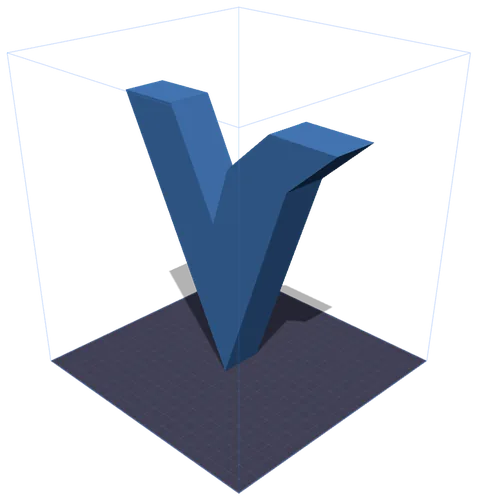
Left: the build volume turns red the moment the model breaches it. Right: one press of Scale to Fit shrinks it proportionally until it sits inside. The millimetres are the model’s own measured bounding box — a GLB carries no real-world unit, so the size a file claims and the size it prints at are rarely the same thing.
Everything you need to know about preparing models for FDM 3D printing.
Print preparation (or print prep) is the process of taking a 3D model and configuring it for a specific 3D printer. This includes positioning the model on the build plate, selecting print quality settings like layer height and infill, choosing temperatures for your filament, and ultimately generating the G-code instructions that tell your printer exactly how to move.
G-code is the standard language used to control CNC machines and 3D printers. Each line contains a command — G1 for linear moves, M104 for setting temperatures, and G28 for homing axes. The Print Control tool generates complete G-code with start sequences, layer-by-layer perimeters, infill patterns, and end sequences ready for most FDM printers.
PLA (200/60°C) is the easiest to print — great for prototypes and decorative models. PETG (235/80°C) offers better durability and heat resistance. ABS (240/100°C) is strong but requires an enclosed printer. TPU (225/50°C) is flexible, ideal for phone cases and gaskets. Use the material preset buttons to instantly set the right temperatures.
Layer height determines print quality and speed. 0.1mm layers produce smooth surfaces but take longer. 0.2mm is the standard balance of quality and speed. 0.3mm+ layers print faster but show visible layer lines. The slice preview lets you see exactly how many layers your model will have at any setting.
Grid provides balanced strength in all directions. Lines are fastest to print but weaker on one axis. Triangles offer excellent structural rigidity. Honeycomb gives the best strength-to-weight ratio. For decorative prints, 10-20% infill is sufficient. Functional parts typically need 40-60%.
Enable supports for overhangs beyond 45° — they prevent drooping and failed prints. For bed adhesion, Skirt primes the nozzle without touching the model. Brim adds a flat border for better grip. Raft prints a thick base layer, useful for warping-prone materials like ABS.
Built-in presets for popular FDM printers, with support for custom bed dimensions.
220 × 220 × 250 mm
The most popular budget FDM printer. Great for beginners.
250 × 210 × 210 mm
Industry standard for reliability and print quality.
256 × 256 × 256 mm
High-speed CoreXY with automatic calibration.
350 × 350 × 350 mm
Open-source CoreXY for large, high-quality prints.
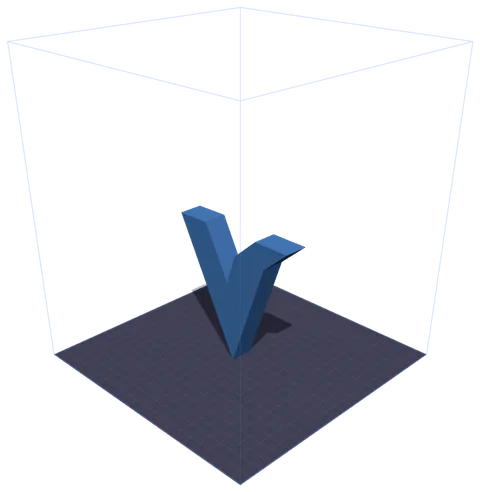
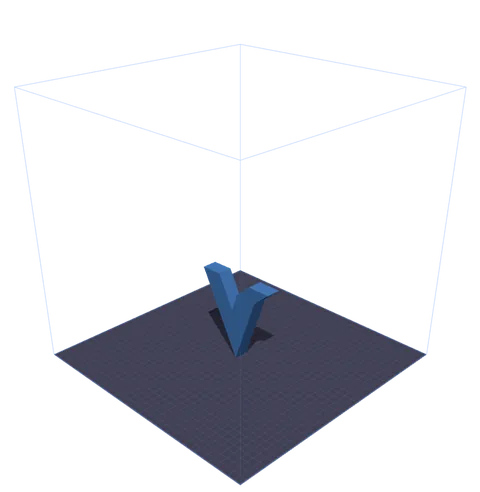
One model, two presets. The wireframe cage is the machine’s real build volume drawn around the bed to scale, so the room you have left is something you see rather than calculate. Four printers are preset; choose Custom and type X, Y and Z for anything else.
Common questions about the Print Control tool.
Yes, completely free. Print Control runs entirely in your browser — there are no subscriptions, no sign-ups, and no usage limits. Your 3D models are processed locally and never uploaded to any server.
The generated G-code includes proper start/end sequences, temperature commands, homing, and extrusion calculations compatible with most Marlin-based FDM printers. Always review G-code before printing on a new machine for the first time.
Print Control accepts STL (the most common 3D printing format), GLB (binary glTF, used by the SVG to 3D converter), OBJ (Wavefront), 3MF (3D Manufacturing Format with color and material data), and PLY (Polygon File Format, common in 3D scanning). Drag and drop files or use the upload button.
When you click the Print button in the SVG to 3D converter, your model is exported as a GLB blob and stored temporarily in your browser's IndexedDB. Print Control automatically detects and loads the pending model when it opens — no file downloads needed.
The slice preview uses a GPU-accelerated clipping plane to cut through your model at each layer height. You can scrub through all layers with the slider or play an animation to visualize the entire print from bottom to top.
Yes. Select Custom from the printer dropdown and enter your bed dimensions (X, Y, Z in millimeters). The printer bed and build volume wireframe will update to match your exact printer specifications.
Grid is the best general-purpose pattern. Use Triangles for structural parts that need rigidity, Honeycomb for the best strength-to-weight ratio, and Lines when you want the fastest print time. For decorative items, 10-20% density is usually enough.