Remove Background from Image — Free, No Signup
Download the AI model
AI mode cuts out people, pets and products from real photos. The AI runs on your own device, so it needs a one-time download first.
What Is a Background Remover?
A background remover is a free online tool that separates the subject of a picture — a person, pet, product or logo — from everything behind it, leaving a clean cut-out on a transparent background. Vextrude’s Background Remover does it entirely in your browser, with no installation, account, or upload required: Quick mode clears plain backgrounds instantly, and AI mode cuts out real photos, hair and fur included. Touch up any edge with Magic click and the Erase and Restore brushes, then download a full-resolution transparent PNG or a black-and-white mask — or send the cut-out straight to 3D or SVG. Everything is processed locally on your device, so your images never leave your machine.
Remove Backgrounds Free, Right in Your Browser
Drop in a photo or a logo and get a clean cut-out with a transparent background in seconds. No account, no watermark and no upload — everything happens on your own device.
Logos & graphics
Quick mode reads the plain colour around your logo, icon or product shot and removes it instantly. Anti-aliased edges stay smooth, and white details inside the design are protected unless you choose to clear them too.
People, pets & products
AI mode recognises the subject in a real photo — a portrait, your dog, a product on a busy table — and cuts it out, hair and fur included, even when the background is cluttered.
Straight to 3D & vector
Send the cut-out to Image to STL to make a 3D-printable relief that follows the subject’s outline, or to Image to SVG to trace it into a vector for cutting, engraving or print.
Drag to compare
made with this tool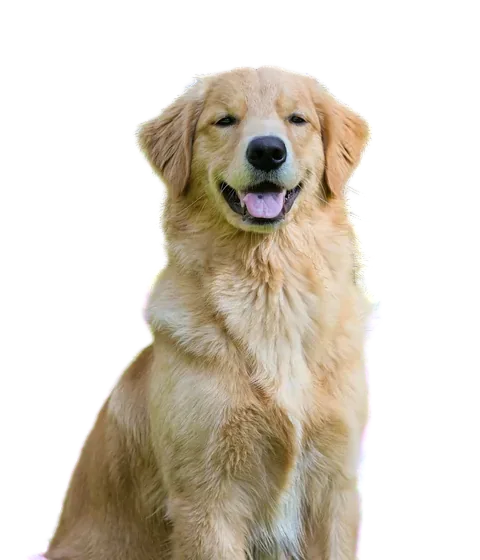
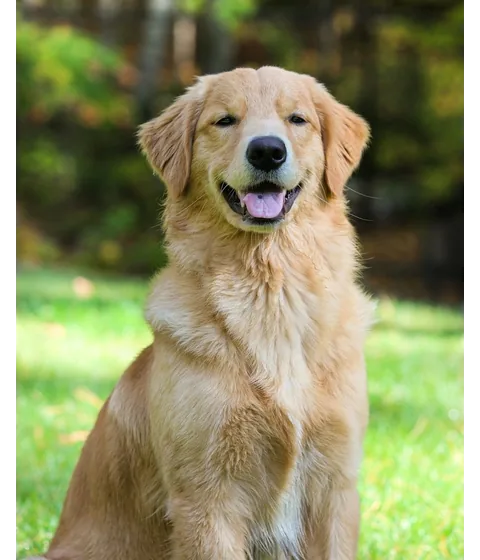
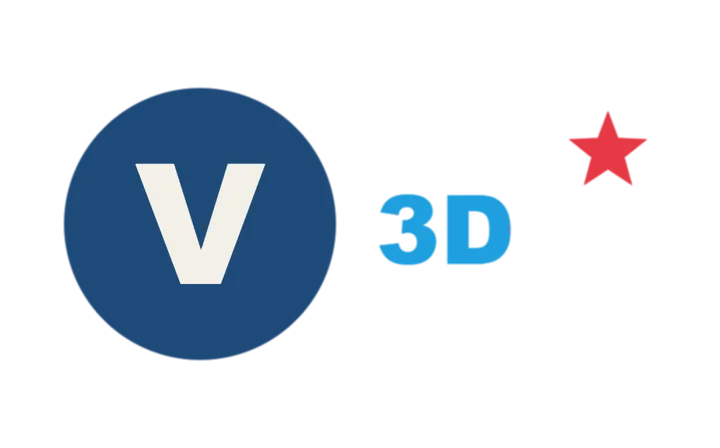
Left: a real photo cut out by AI mode — fur and ears included. Right: a logo cleared in Quick mode in a fraction of a second; one Magic click also cleared the hole inside the D. Drag the handles to compare.
A Free Background Remover That Respects Your Photos
Most online background removers upload your picture to a server and keep the full-size result behind a paywall. This one works differently.
Your photo never leaves your device
Instead of uploading your picture to a server, the whole cut-out runs inside your browser — the AI included. Nothing is sent, stored or used for training.
Full resolution, free
Many tools give a small preview for free and charge for the full-size file. Here the full-size cut-out, up to 4096 pixels, is free every time.
No watermark, no limits, no signup
Remove as many backgrounds as you like. No account, no credits, no logo stamped on your image.
Fix it yourself
Magic click, Erase and Restore brushes with softness and opacity, zoom, and a before/after slider — touch up any edge in seconds.
Mask download
Save the black-and-white mask on its own, ready for other editing apps, video tools or 3D height maps.
Straight to 3D and vector
One click sends the cut-out to Image to STL for a 3D print that follows the outline, or to Image to SVG for a clean vector.
How to Remove the Background from an Image
Four steps from photo to clean cut-out. Your image is never uploaded.
Add your image
Drop, paste or pick a PNG, JPG or WebP — or try one of the samples.
Choose a mode
Quick for logos on a plain background, AI for photos of people, pets and products.
Fine-tune
Adjust tolerance and soft edges, and use Before/After to check the result against the original.
Download or send
Save a transparent PNG, or send the cut-out to Image to STL or Image to SVG.
Everything You Need for a Clean Cut-Out
A focused tool that does one job well — and hands the result straight to our 3D and vector tools.
Two removal modes
An instant colour-based mode for flat graphics and an AI mode for real photos, so you always have the right tool for the picture.
High resolution
Cut-outs keep your image’s size up to 4096 pixels on the longest side — enough for print, product listings and 3D models.
Soft, natural edges
A soft-edges slider (0–8 px) smooths the outline so the subject blends into any new background without a hard halo.
Any background colour
Keep it transparent, or fill the background with white, black or any colour you pick before downloading.
Compare & touch up
Use Before/After to check against the original, then fix anything with Magic click or the Erase and Restore brushes — with Undo.
Private by design
The image and the AI both stay in your browser. Nothing is uploaded, logged or stored on a server.
One photo, four results
made with this tool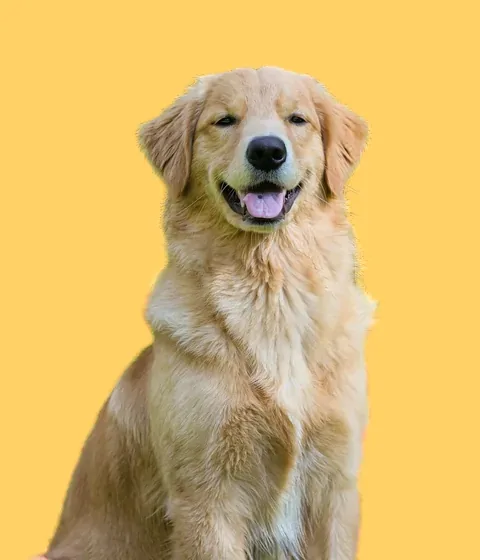
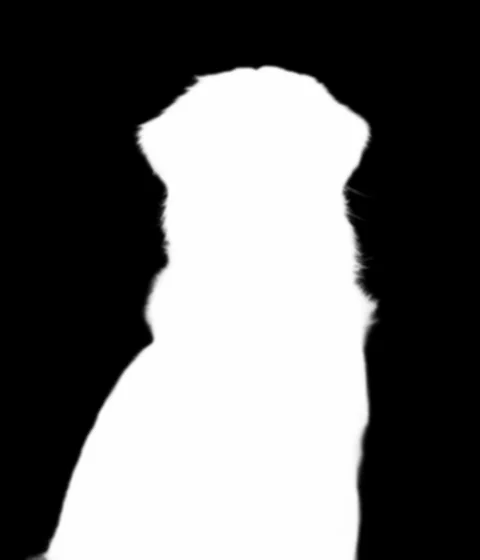
Download the cut-out as a transparent PNG, put it on white, black or any colour you pick, or save the black-and-white mask on its own for other editing apps, video tools or 3D height maps.
Getting the Best Results
A few habits make the difference between a rough cut-out and a perfect one.
Pick the right mode
If the background is one plain colour — a white product shot, a logo on a coloured square — Quick mode is faster and sharper. For anything photographed in a real scene, switch to AI.
Tune the tolerance
In Quick mode, raise the tolerance if traces of the background remain around the edges, and lower it if parts of the subject that are close to the background colour start to disappear.
Clear holes inside letters
Letters like O, A and B trap background inside them. Tick “Also remove it inside shapes” to clear those holes too — leave it off if your design has white details that must stay.
Start from a clear subject
AI mode works best when the subject is in focus and stands out from the background. Very small subjects or heavy motion blur give softer outlines.
What People Make with a Background Remover
Once the background is gone, the subject can go anywhere.
Product photos
Clean white or transparent backgrounds for online shops and marketplace listings.
Stickers & prints
Cut out a pet or a character, then print it as a sticker, T-shirt design or card.
Profile pictures
Put yourself on a solid colour or a new scene for social profiles and CVs.
3D-printed keepsakes
Send your pet’s cut-out to Image to STL for a relief that follows its outline — a keychain, magnet or ornament.
Logos for cutting machines
Clear a logo’s backdrop, then trace it to SVG for vinyl cutters, laser engravers and embroidery software.
Slides & thumbnails
Drop transparent cut-outs onto presentation slides, YouTube thumbnails and posters.
From cut-out to 3D print
made with this tool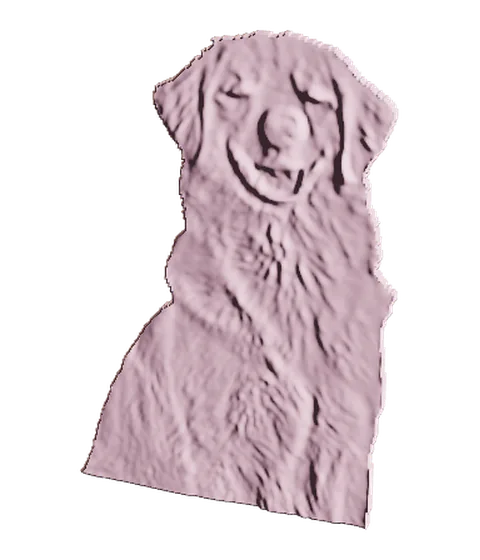
“Make it 3D” opens Image to STL with the cut-out already loaded. Because the background is gone, the relief follows the dog’s outline — no square plate — ready for a keychain, magnet or ornament.
Background Remover FAQ
Answers to the most common questions about removing image backgrounds with Vextrude.
Is the background remover really free?
Yes. There is no signup, no watermark, no credits and no limit on how many images you process. The tool runs on your own computer, so it costs us nothing extra when you use it more.
How do I make an image background transparent?
Drop your image in and let Quick or AI mode remove the background, keep the Transparent swatch selected, then click Download under the picture and choose PNG. The PNG keeps the transparency, so the subject sits cleanly on any colour, slide or website.
How do I remove a white background from an image?
Use Quick mode: it detects the plain white around your logo, signature or product and clears it in a moment. If white areas inside the design should go too — like the inside of an O — tick “Also remove it inside shapes” or click them with the Magic tool.
Are my images uploaded to a server?
No. Both modes run entirely in your browser. Your picture never leaves your device and nothing is stored online.
What is the difference between Quick and AI mode?
Quick mode finds the plain colour around the edge of your image and removes it — instant and ideal for logos, icons and products on a white or single-colour backdrop. AI mode uses a neural network to recognise the subject, so it works on real photos of people, pets and objects with busy backgrounds.
Why does AI mode download something first?
The AI model (about 44 MB) runs on your device instead of on a server. Your browser downloads it the first time you use AI mode and normally keeps it, so later visits start much faster.
Which image formats can I use?
Any image your browser can open — PNG, JPG/JPEG, WebP, GIF and BMP. The result downloads as a PNG with a transparent background, or filled with white, black or any colour you pick. You can also download the black-and-white mask on its own (white = kept, black = removed) for other editing apps, video tools or 3D height maps.
Does it keep the full resolution?
Yes, up to 4096 pixels on the longest side. Larger images are scaled down to that size so the tool stays fast on every device. The AI works out the outline at a lower size and then scales it back up to your full image, so the cut-out stays sharp.
Can it remove the background inside letters, like the hole in an O?
Yes. In Quick mode, tick “Also remove it inside shapes”. Without it, only the background connected to the edge of the image is removed, which protects white details inside your logo. For full control, use the touch-up tools on top of the preview: Magic click removes or restores any single area, and the Erase and Restore brushes let you paint parts away or back.
Can I turn the cut-out into a 3D print or an SVG?
Yes. “Make it 3D” opens Image to STL with your cut-out already loaded, so the model follows the subject’s outline with no square plate. “Trace to SVG” opens Image to SVG to turn it into a vector for cutting machines, laser engravers or printing.
Does it work on phones and tablets?
Quick mode works on any modern phone. AI mode also runs on phones, but the first download is about 44 MB and the cut-out takes longer than on a computer, so Wi-Fi is recommended.
Can I remove a background without losing quality?
Yes. The cut-out keeps your image’s own resolution up to 4096 pixels on the longest side, saved as a lossless PNG with no watermark, and edge matting takes the old background’s colour out of the outline so there is no halo.
How do I change the background to a different colour?
After the cut-out, pick White, Black or the rainbow swatch for any colour you like — the preview updates as you choose — then click Download under the picture and choose PNG. Each new image starts on Transparent again.
Related Tools
Take your cut-out further with more free browser-based tools from Vextrude.