STL, GLB, OBJ, 3MF 또는 PLY 파일을 여기에 드롭하세요
또는 클릭하여 찾아보기 — 모델이 프린터 베드에 배치됩니다
레이어 0 / 0
Print Control은 브라우저에서 완전히 실행되는 무료 온라인 3D 프린트 슬라이서입니다. 설치, 계정, 업로드가 필요 없습니다. STL, OBJ, 3MF, PLY, GLB 모델을 프린트 준비된 G-code로 변환하며, 레이어별 슬라이스 미리 보기, 조정 가능한 레이어 높이 및 인필, 서포트 생성, Ender 3, Prusa, Bambu Lab, Voron과 같은 인기 FDM 프린터용 프리셋을 제공합니다. 파일은 기기에서 로컬로 처리되며 서버로 전송되지 않습니다.
3D 모델에서 프린터 준비 완료 G-code까지 네 가지 간단한 단계로 — 모두 브라우저에서.
STL, GLB, OBJ, 3MF 또는 PLY 파일을 드롭하거나 인쇄 버튼을 사용하여 SVG to 3D 변환기에서 직접 보내세요.
프린터를 선택하고 레이어 높이, 인필 밀도, 온도, 서포트, 접착 유형을 설정하세요.
실시간 슬라이스 미리 보기로 프린트의 모든 레이어를 살펴보세요. 다양한 속도로 애니메이션을 재생하세요.
둘레, 인필 및 온도 제어로 프린터 준비 G-code 생성 — 다운로드하고 인쇄하세요.
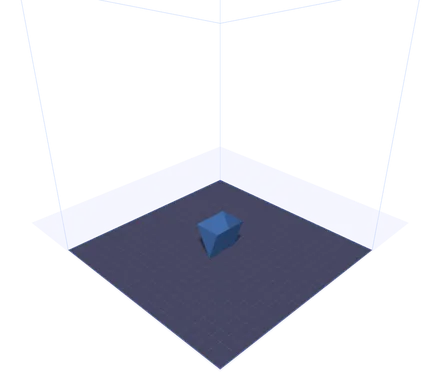
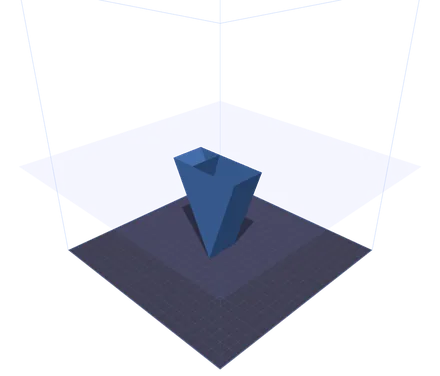
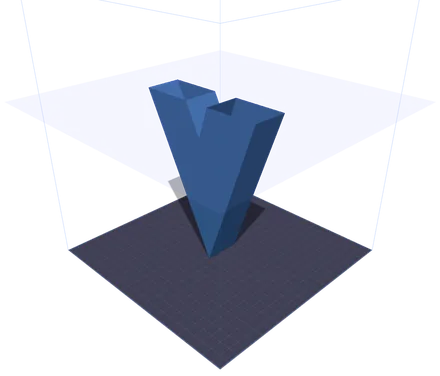
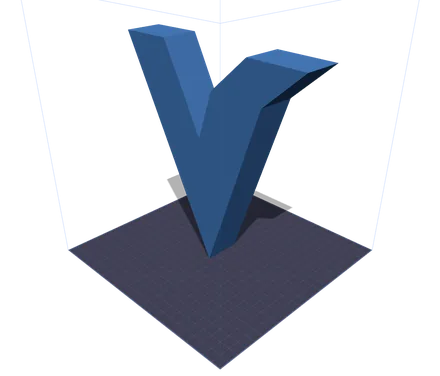
같은 모델을 출력의 네 시점에서 본 모습입니다. 반투명한 면은 노즐이 도달한 높이이며 그 위는 모두 가려집니다. 위쪽으로 가면 단면이 두 개의 섬으로 갈라지는데, V의 양쪽 팔입니다. 슬라이서가 그 사이의 이동 경로를 계획하기 시작하는 지점이 바로 여기입니다. 슬라이더를 움직여 보면 필라멘트를 쓰고 난 뒤가 아니라 쓰기 전에 그 지점을 확인할 수 있습니다.
실시간 3D 시각화와 즉각적인 G-code 생성을 갖춘 완전한 브라우저 기반 프린트 준비 도구입니다.
격자선이 있는 정확한 3D 프린터 베드 위에 모델을 확인하세요. Ender 3, Prusa i3, Bambu Lab X1, Voron 2.4 및 사용자 지정 베드 크기를 지원합니다.
레이어 높이, 노즐 직경, 프린트 속도, 인필 밀도 및 패턴, 노즐과 베드 온도, 서포트 구조, 안착 유형을 세밀하게 조정하세요.
실시간 GPU 가속 클리핑 평면으로 프린트를 레이어별로 살펴보세요. 1x, 2x 또는 5x 속도의 애니메이션 재생으로 모든 세부 사항을 검사할 수 있습니다.
시작/종료 시퀀스, 외곽선 추적, 격자 인필, 올바른 압출 계산이 포함된 완전한 G-code 파일을 생성하세요. 다운로드하여 프린터로 바로 보낼 수 있습니다.
SVG to 3D 변환기에서 인쇄 버튼을 클릭하면 모델이 IndexedDB를 통해 즉시 전송됩니다. 다운로드나 재업로드가 필요 없습니다.
설치 없음, 클라우드 업로드 없음. 모든 것이 WebGL과 Three.js를 사용하여 브라우저에서 로컬로 실행됩니다. 파일은 절대 기기를 벗어나지 않습니다.
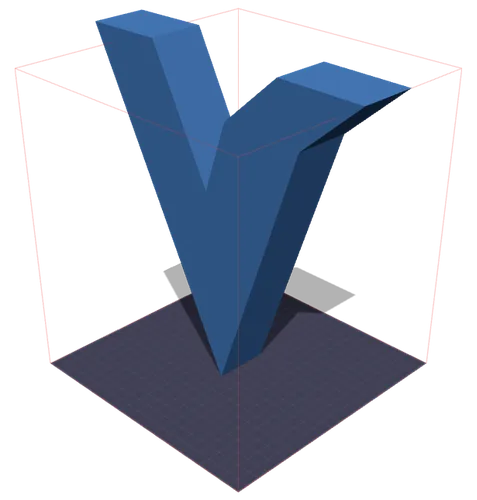
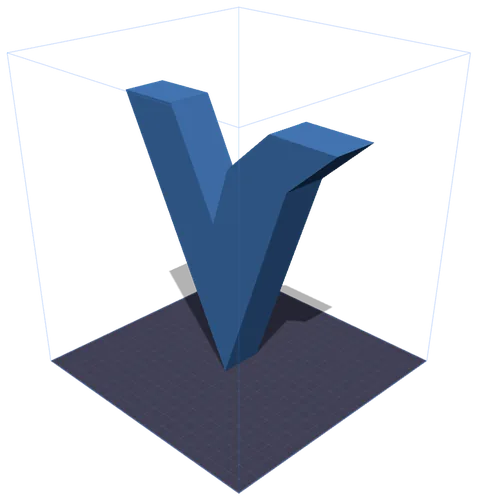
왼쪽: 모델이 조형 공간을 벗어나는 순간 상자가 빨갛게 바뀝니다. 오른쪽: 「크기 맞춤」을 한 번 누르면 안에 들어갈 때까지 비율을 유지한 채 줄어듭니다. 밀리미터 값은 모델 자체의 실측 바운딩 박스에서 나옵니다. GLB에는 실제 단위가 없어서, 파일이 말하는 크기와 실제로 출력되는 크기가 같은 경우는 드뭅니다.
FDM 3D 프린팅을 위해 모델을 준비하는 데 알아야 할 모든 것.
프린트 준비(print prep)는 3D 모델을 가져와 특정 3D 프린터에 맞게 구성하는 과정입니다. 여기에는 모델을 빌드 플레이트에 배치하고, 레이어 높이 및 인필과 같은 프린트 품질 설정을 선택하고, 필라멘트의 온도를 선택하고, 최종적으로 프린터에 정확히 어떻게 움직일지 알려주는 G-code 명령을 생성하는 것이 포함됩니다.
G-code는 CNC 기계와 3D 프린터를 제어하는 데 사용되는 표준 언어입니다. 각 줄에는 명령이 포함됩니다. 직선 이동용 G1, 온도 설정용 M104, 축 원점 복귀용 G28 등입니다. Print Control 도구는 시작 시퀀스, 레이어별 외곽선, 인필 패턴, 종료 시퀀스가 포함된 완전한 G-code를 생성하며 대부분의 FDM 프린터에 사용할 수 있습니다.
PLA(200/60 °C)는 가장 프린트하기 쉬워 프로토타입과 장식용 모델에 적합합니다. PETG(235/80 °C)는 내구성과 내열성이 더 좋습니다. ABS(240/100 °C)는 튼튼하지만 밀폐형 프린터가 필요합니다. TPU(225/50 °C)는 유연하여 휴대폰 케이스와 개스킷에 이상적입니다. 재료 프리셋 버튼을 사용하면 올바른 온도를 즉시 설정할 수 있습니다.
레이어 높이는 프린트 품질과 속도를 결정합니다. 0.1mm 레이어는 매끄러운 표면을 만들지만 시간이 더 걸립니다. 0.2mm는 품질과 속도의 표준 균형입니다. 0.3mm 이상의 레이어는 더 빠르게 프린트되지만 눈에 띄는 레이어 선이 나타납니다. 슬라이스 미리 보기를 통해 어떤 설정에서든 모델의 레이어 수를 정확히 확인할 수 있습니다.
격자(Grid)는 모든 방향에서 균형 잡힌 강도를 제공합니다. 선(Lines)은 가장 빠르게 프린트되지만 한 축에서 약합니다. 삼각형(Triangles)은 뛰어난 구조적 강성을 제공합니다. 벌집(Honeycomb)은 최고의 강도 대 중량비를 제공합니다. 장식용 프린트에는 10~20% 인필로 충분합니다. 기능성 부품에는 일반적으로 40~60%가 필요합니다.
45°를 초과하는 오버행에는 서포트를 활성화하세요. 처짐과 프린트 실패를 방지합니다. 베드 안착을 위해 스커트(Skirt)는 모델에 닿지 않고 노즐을 예열합니다. 브림(Brim)은 더 나은 접착을 위해 평평한 테두리를 추가합니다. 라프트(Raft)는 두꺼운 베이스 레이어를 프린트하며, ABS처럼 휨이 발생하기 쉬운 재료에 유용합니다.
인기 FDM 프린터용 내장 프리셋, 사용자 정의 베드 치수 지원.
220 × 220 × 250 mm
가장 인기 있는 보급형 FDM 프린터. 초보자에게 적합합니다.
250 × 210 × 210 mm
신뢰성과 프린트 품질의 업계 표준.
256 × 256 × 256 mm
자동 보정 기능이 있는 고속 CoreXY.
350 × 350 × 350 mm
크고 고품질 프린트를 위한 오픈소스 CoreXY.
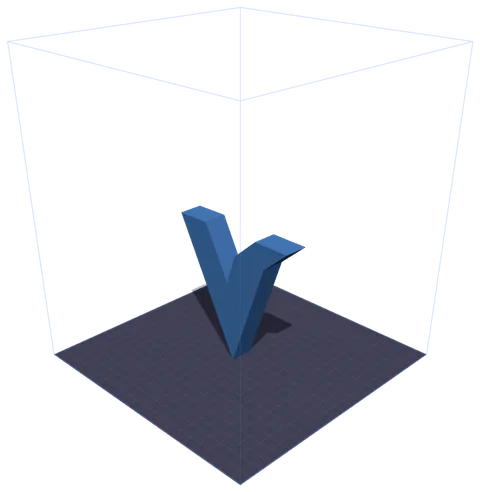
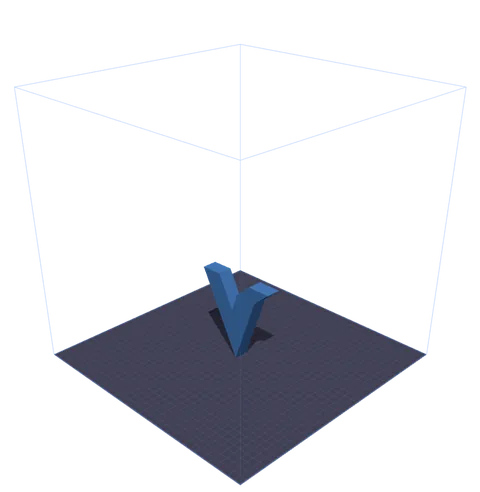
모델은 하나, 프리셋은 둘입니다. 와이어프레임 상자는 기기의 실제 조형 공간으로 베드 둘레에 실척으로 그려지므로, 남은 여유는 계산하는 것이 아니라 보이는 것이 됩니다. 네 가지 프린터가 미리 준비되어 있고, 그 밖의 기기는 「사용자 정의」를 골라 X, Y, Z를 입력하면 됩니다.
3D 프린트 컨트롤 도구에 관한 자주 묻는 질문.
네, 완전히 무료입니다. Print Control은 브라우저에서 완전히 실행됩니다. 구독, 가입, 사용 제한이 없습니다. 3D 모델은 로컬에서 처리되며 서버에 업로드되지 않습니다.
생성된 G-code에는 적절한 시작/종료 시퀀스, 온도 명령, 원점 복귀, 압출 계산이 포함되며 대부분의 Marlin 기반 FDM 프린터와 호환됩니다. 새 기기에서 처음 프린트하기 전에 항상 G-code를 검토하세요.
Print Control은 STL(가장 일반적인 3D 프린팅 형식), GLB(SVG to 3D 변환기가 사용하는 바이너리 glTF), OBJ(Wavefront), 3MF(색상 및 재료 데이터가 포함된 3D Manufacturing Format), PLY(3D 스캐닝에서 일반적인 Polygon File Format)를 지원합니다. 파일을 드래그 앤 드롭하거나 업로드 버튼을 사용하세요.
SVG to 3D 변환기에서 인쇄 버튼을 클릭하면 모델이 GLB blob으로 내보내져 브라우저의 IndexedDB에 임시로 저장됩니다. Print Control은 열릴 때 대기 중인 모델을 자동으로 감지하여 불러옵니다. 파일 다운로드가 필요 없습니다.
슬라이스 미리 보기는 GPU 가속 클리핑 평면을 사용하여 각 레이어 높이에서 모델을 절단합니다. 슬라이더로 모든 레이어를 살펴보거나 애니메이션을 재생하여 아래에서 위로 전체 프린트를 볼 수 있습니다.
네. 프린터 드롭다운에서 사용자 지정을 선택하고 베드 크기(X, Y, Z, 밀리미터 단위)를 입력하세요. 프린터 베드와 빌드 볼륨 와이어프레임이 프린터의 정확한 사양에 맞게 업데이트됩니다.
격자(Grid)는 가장 좋은 범용 패턴입니다. 강성이 필요한 구조 부품에는 삼각형(Triangles)을, 최고의 강도 대 중량비에는 벌집(Honeycomb)을, 가장 짧은 프린트 시간을 원할 때는 선(Lines)을 사용하세요. 장식용 물품에는 일반적으로 10~20% 밀도면 충분합니다.