Suelta aquí tu archivo STL, GLB, OBJ, 3MF o PLY
o haz clic para explorar — el modelo se colocará en la cama de impresión
Capa 0 / 0
Print Control es un laminador 3D en línea y gratuito que funciona íntegramente en tu navegador: sin instalación, cuenta ni subidas. Convierte modelos STL, OBJ, 3MF, PLY y GLB en G-code listo para imprimir, con vista previa capa por capa, altura de capa y relleno ajustables, generación de soportes y perfiles para impresoras FDM populares como Ender 3, Prusa, Bambu Lab y Voron. Tus archivos se procesan localmente en tu dispositivo y nunca se envían a un servidor.
Del modelo 3D a G-code listo para imprimir en cuatro pasos simples — todo en tu navegador.
Suelta un archivo STL, GLB, OBJ, 3MF o PLY, o envíalo directamente desde el convertidor de SVG a 3D con el botón Imprimir.
Selecciona tu impresora, ajusta la altura de capa, densidad de relleno, temperaturas, soportes y tipo de adhesión.
Recorre cada capa de tu impresión con la vista previa de laminado en tiempo real. Reproduce animaciones a velocidades variables.
Genera G-code listo para imprimir con perímetros, relleno y controles de temperatura — descarga e imprime.
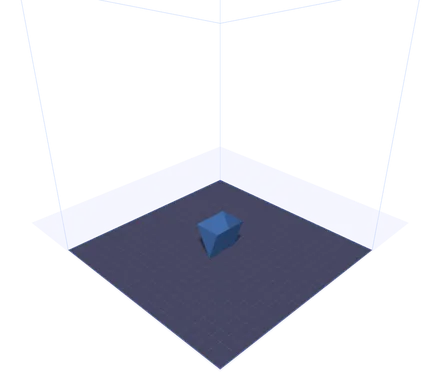
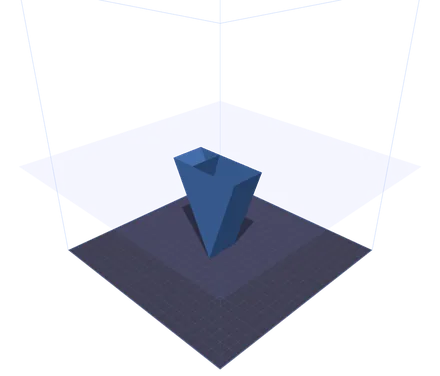
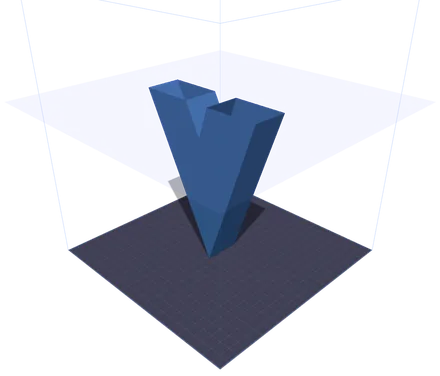
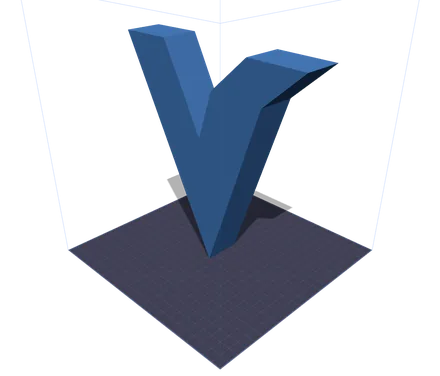
El mismo modelo en cuatro momentos de la impresión. El plano translúcido es la altura a la que ha llegado la boquilla: todo lo que queda por encima se oculta. Cerca de la parte alta la sección se parte en dos islas separadas, los dos brazos de la V, y ahí es donde el laminador tiene que planificar los desplazamientos entre ellas. Mover el deslizador es lo que te permite ver ese punto antes de gastar filamento, no después.
Una completa herramienta de preparación de impresión basada en el navegador, con visualización 3D en tiempo real y generación instantánea de G-code.
Ve tu modelo colocado sobre una cama de impresión 3D precisa con líneas de cuadrícula. Compatible con Ender 3, Prusa i3, Bambu Lab X1, Voron 2.4 y dimensiones de cama personalizadas.
Ajusta con precisión la altura de capa, el diámetro de la boquilla, la velocidad de impresión, la densidad y el patrón de relleno, las temperaturas de boquilla y cama, las estructuras de soporte y el tipo de adherencia.
Recorre tu impresión capa por capa con un plano de corte acelerado por GPU en tiempo real. Reproducción animada a 1x, 2x o 5x para inspeccionar cada detalle.
Genera archivos G-code completos con secuencias de inicio/fin, trazado de perímetros, relleno en cuadrícula y cálculos de extrusión adecuados. Descárgalos y envíalos directamente a tu impresora.
Haz clic en el botón Imprimir del convertidor de SVG a 3D y tu modelo se transfiere al instante mediante IndexedDB: sin descargas ni subidas adicionales.
Sin instalación ni subidas a la nube. Todo se ejecuta localmente en tu navegador con WebGL y Three.js. Tus archivos nunca salen de tu equipo.
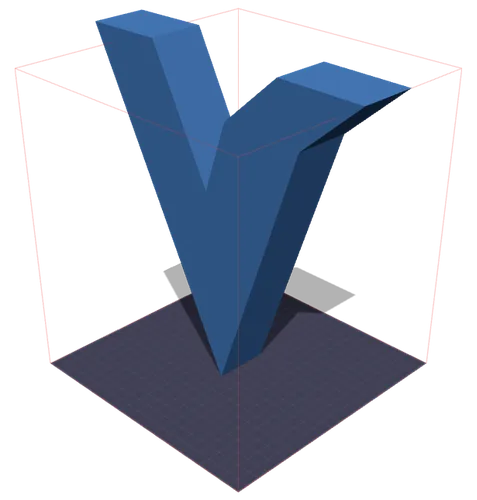
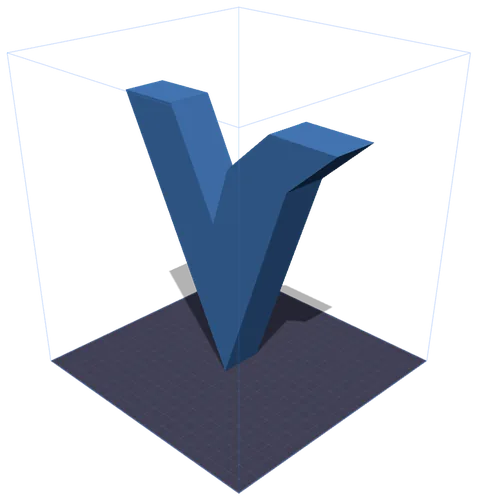
Izquierda: el volumen de impresión se vuelve rojo en cuanto el modelo lo atraviesa. Derecha: una pulsación en Escalar lo reduce proporcionalmente hasta que cabe. Los milímetros salen de la caja envolvente medida del propio modelo — un GLB no lleva unidades reales, así que el tamaño que declara un archivo y el que acaba imprimiéndose casi nunca coinciden.
Todo lo que necesitas saber para preparar modelos para la impresión 3D FDM.
La preparación de impresión (o print prep) es el proceso de tomar un modelo 3D y configurarlo para una impresora 3D específica. Esto incluye colocar el modelo en la placa de impresión, seleccionar ajustes de calidad como la altura de capa y el relleno, elegir las temperaturas para tu filamento y, por último, generar las instrucciones G-code que le indican a tu impresora exactamente cómo moverse.
El G-code es el lenguaje estándar utilizado para controlar máquinas CNC e impresoras 3D. Cada línea contiene un comando: G1 para movimientos lineales, M104 para ajustar temperaturas y G28 para el posicionamiento de ejes. La herramienta Print Control genera G-code completo con secuencias de inicio, perímetros capa por capa, patrones de relleno y secuencias de fin listos para la mayoría de impresoras FDM.
El PLA (200/60°C) es el más fácil de imprimir, ideal para prototipos y modelos decorativos. El PETG (235/80°C) ofrece mayor durabilidad y resistencia al calor. El ABS (240/100°C) es resistente pero requiere una impresora cerrada. El TPU (225/50°C) es flexible, ideal para fundas de teléfono y juntas. Usa los botones de material predefinido para ajustar al instante las temperaturas correctas.
La altura de capa determina la calidad y la velocidad de impresión. Las capas de 0,1 mm producen superficies suaves pero tardan más. 0,2 mm es el equilibrio estándar entre calidad y velocidad. Las capas de 0,3 mm o más se imprimen más rápido pero muestran líneas de capa visibles. La vista previa de laminado te permite ver exactamente cuántas capas tendrá tu modelo con cualquier ajuste.
La cuadrícula (Grid) ofrece una resistencia equilibrada en todas las direcciones. Las líneas (Lines) son las más rápidas de imprimir pero más débiles en un eje. Los triángulos (Triangles) ofrecen una excelente rigidez estructural. El panal (Honeycomb) proporciona la mejor relación resistencia-peso. Para impresiones decorativas basta con un relleno del 10-20 %. Las piezas funcionales suelen necesitar del 40 al 60 %.
Activa los soportes para voladizos de más de 45° para evitar descuelgues e impresiones fallidas. Para la adherencia a la cama, el faldón (Skirt) ceba la boquilla sin tocar el modelo. El borde (Brim) añade un contorno plano para mejor sujeción. La balsa (Raft) imprime una base gruesa, útil para materiales propensos a deformarse como el ABS.
Ajustes predefinidos para impresoras FDM populares, con soporte para dimensiones personalizadas.
220 × 220 × 250 mm
La impresora FDM económica más popular. Ideal para principiantes.
250 × 210 × 210 mm
Estándar del sector por su fiabilidad y calidad de impresión.
256 × 256 × 256 mm
CoreXY de alta velocidad con calibración automática.
350 × 350 × 350 mm
CoreXY de código abierto para impresiones grandes y de alta calidad.
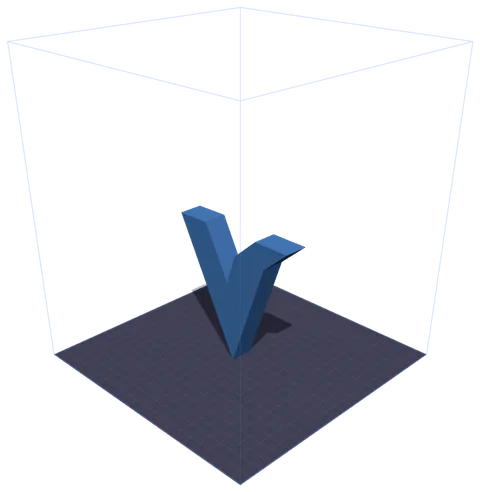
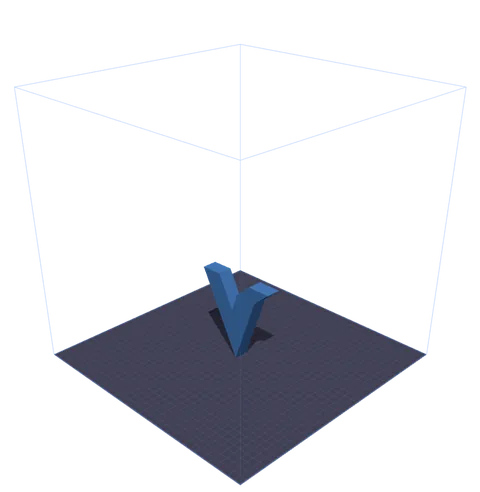
Un modelo, dos preajustes. La caja de alambre es el volumen de impresión real de la máquina, dibujado a escala alrededor de la cama, de modo que el espacio que te queda se ve en lugar de calcularse. Hay cuatro impresoras preconfiguradas; para cualquier otra, elige Personalizado y escribe X, Y y Z.
Preguntas frecuentes sobre la herramienta de control de impresión.
Sí, totalmente gratis. Print Control funciona íntegramente en tu navegador: no hay suscripciones, ni registros, ni límites de uso. Tus modelos 3D se procesan localmente y nunca se suben a ningún servidor.
El G-code generado incluye las secuencias de inicio/fin, los comandos de temperatura, el posicionamiento y los cálculos de extrusión adecuados, compatibles con la mayoría de impresoras FDM basadas en Marlin. Revisa siempre el G-code antes de imprimir por primera vez en una máquina nueva.
Print Control admite STL (el formato de impresión 3D más común), GLB (glTF binario, usado por el convertidor de SVG a 3D), OBJ (Wavefront), 3MF (3D Manufacturing Format, con datos de color y material) y PLY (Polygon File Format, común en el escaneo 3D). Arrastra y suelta los archivos o usa el botón de subida.
Cuando haces clic en el botón Imprimir del convertidor de SVG a 3D, tu modelo se exporta como un blob GLB y se almacena temporalmente en el IndexedDB de tu navegador. Print Control detecta y carga automáticamente el modelo pendiente al abrirse: sin necesidad de descargar archivos.
La vista previa de laminado usa un plano de corte acelerado por GPU para cortar tu modelo a cada altura de capa. Puedes recorrer todas las capas con el control deslizante o reproducir una animación para visualizar toda la impresión de abajo hacia arriba.
Sí. Selecciona Personalizado en el menú de impresoras e introduce las dimensiones de tu cama (X, Y, Z en milímetros). La cama de impresión y el volumen de construcción se actualizarán para coincidir con las especificaciones exactas de tu impresora.
La cuadrícula (Grid) es el mejor patrón de uso general. Usa los triángulos (Triangles) para piezas estructurales que necesitan rigidez, el panal (Honeycomb) para la mejor relación resistencia-peso y las líneas (Lines) cuando quieras el menor tiempo de impresión. Para objetos decorativos, una densidad del 10-20 % suele ser suficiente.