Перетащите STL, GLB, OBJ, 3MF или PLY сюда
или нажмите для выбора — модель будет размещена на столе принтера
Слой 0 / 0
Print Control — это бесплатный онлайн-слайсер для 3D-печати, который полностью работает в вашем браузере: без установки, аккаунта или загрузки на сервер. Он преобразует модели STL, OBJ, 3MF, PLY и GLB в готовый к печати G-code, с послойным предпросмотром нарезки, регулируемой высотой слоя и заполнением, генерацией поддержек и предустановками для популярных FDM-принтеров, таких как Ender 3, Prusa, Bambu Lab и Voron. Ваши файлы обрабатываются локально на вашем устройстве и никогда не отправляются на сервер.
От 3D модели до готового G-кода за четыре шага — прямо в браузере.
Перетащите файл STL, GLB, OBJ, 3MF или PLY — или отправьте его напрямую из конвертера SVG в 3D с помощью кнопки «Печать».
Выберите принтер, задайте высоту слоя, плотность заполнения, температуры, поддержки и тип адгезии.
Просматривайте каждый слой печати с помощью предпросмотра нарезки в реальном времени. Воспроизводите анимацию с разной скоростью.
Генерируйте готовый G-код с периметрами, заполнением и температурным контролем — скачайте и распечатайте.
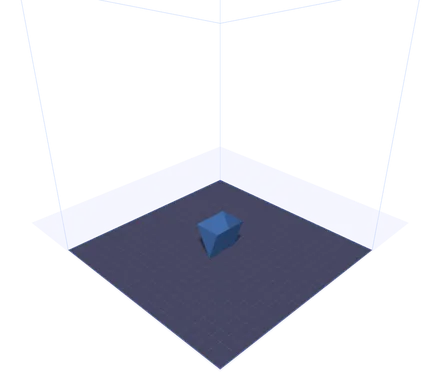
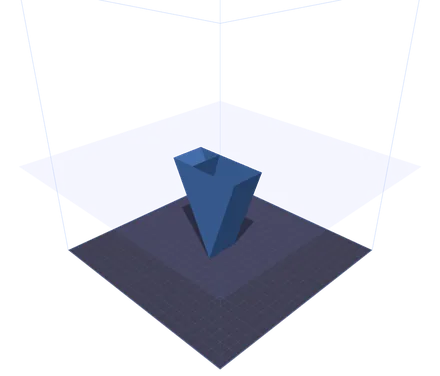
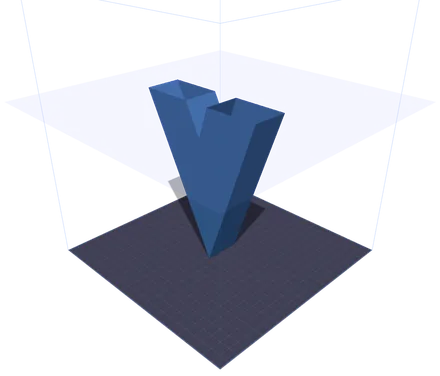
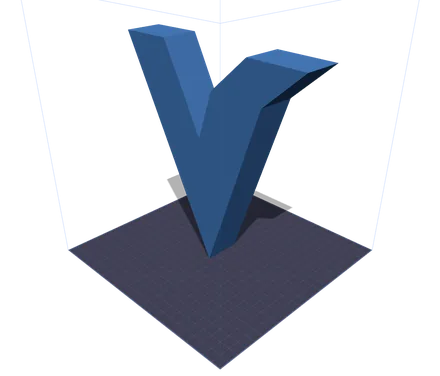
Одна и та же модель в четырёх точках печати. Полупрозрачная плоскость — высота, до которой дошло сопло; всё, что выше, скрыто. Ближе к верху сечение распадается на два отдельных острова, две ветви буквы V, и именно здесь слайсеру приходится планировать холостые перемещения между ними. Ползунок нужен, чтобы увидеть этот момент до того, как вы потратите пруток, а не после.
Полноценный браузерный инструмент подготовки к печати с 3D-визуализацией в реальном времени и мгновенной генерацией G-code.
Смотрите модель на точном 3D-столе принтера с сеткой. Поддерживаются Ender 3, Prusa i3, Bambu Lab X1, Voron 2.4 и пользовательские размеры стола.
Точно настраивайте высоту слоя, диаметр сопла, скорость печати, плотность и узор заполнения, температуру сопла и стола, структуры поддержек и тип адгезии.
Просматривайте печать слой за слоем с помощью GPU-ускоренной плоскости отсечения в реальном времени. Анимированное воспроизведение со скоростью 1x, 2x или 5x для проверки каждой детали.
Создавайте полные файлы G-code с последовательностями начала/конца, обводкой периметров, сеточным заполнением и правильными расчётами экструзии. Скачивайте и отправляйте прямо на принтер.
Нажмите кнопку «Печать» в конвертере SVG в 3D, и ваша модель мгновенно передаётся через IndexedDB — без загрузок и повторной отправки.
Без установки, без загрузки в облако. Всё работает локально в вашем браузере с помощью WebGL и Three.js. Ваши файлы никогда не покидают ваш компьютер.
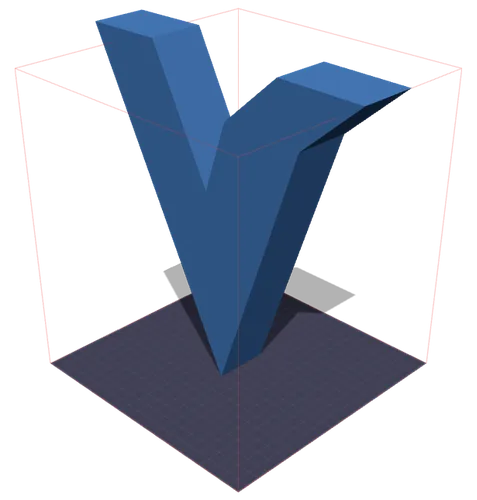
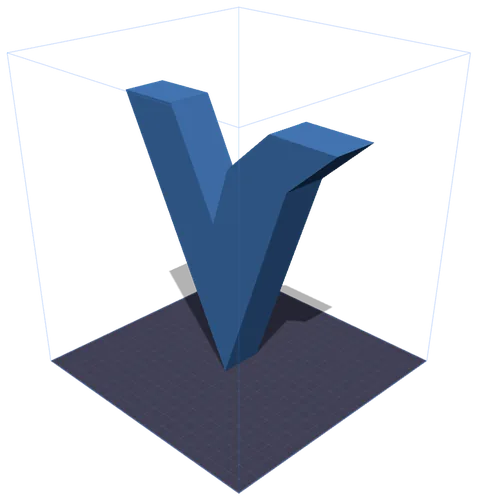
Слева: область печати краснеет, как только модель выходит за её пределы. Справа: одно нажатие «Вписать» пропорционально уменьшает её, пока она не окажется внутри. Миллиметры берутся из измеренного габаритного контейнера самой модели — GLB не хранит реальных единиц, поэтому заявленный и напечатанный размер совпадают редко.
Всё, что нужно знать о подготовке моделей к FDM 3D-печати.
Подготовка к печати (print prep) — это процесс, при котором 3D-модель настраивается под конкретный 3D-принтер. Он включает размещение модели на столе, выбор настроек качества, таких как высота слоя и заполнение, выбор температур для вашего филамента и, наконец, генерацию инструкций G-code, которые сообщают принтеру, как именно двигаться.
G-code — это стандартный язык управления станками с ЧПУ и 3D-принтерами. Каждая строка содержит команду: G1 для линейных перемещений, M104 для установки температуры и G28 для парковки осей. Инструмент Print Control создаёт полный G-code с начальными последовательностями, послойными периметрами, узорами заполнения и завершающими последовательностями, готовый для большинства FDM-принтеров.
PLA (200/60 °C) проще всего печатать — отлично подходит для прототипов и декоративных моделей. PETG (235/80 °C) обеспечивает лучшую прочность и термостойкость. ABS (240/100 °C) прочен, но требует закрытого принтера. TPU (225/50 °C) гибкий, идеален для чехлов телефонов и прокладок. Используйте кнопки предустановок материала, чтобы мгновенно задать нужные температуры.
Высота слоя определяет качество и скорость печати. Слои 0,1 мм дают гладкие поверхности, но печатаются дольше. 0,2 мм — стандартный баланс качества и скорости. Слои от 0,3 мм печатаются быстрее, но оставляют видимые линии слоёв. Предпросмотр нарезки показывает, сколько слоёв будет у вашей модели при любой настройке.
Сетка (Grid) обеспечивает сбалансированную прочность во всех направлениях. Линии (Lines) печатаются быстрее всего, но слабее по одной оси. Треугольники (Triangles) дают отличную структурную жёсткость. Соты (Honeycomb) обеспечивают лучшее соотношение прочности к весу. Для декоративной печати достаточно 10–20% заполнения. Функциональным деталям обычно нужно 40–60%.
Включайте поддержки для нависаний более 45° — они предотвращают провисание и неудачную печать. Для адгезии к столу «юбка» (Skirt) готовит сопло, не касаясь модели. «Кайма» (Brim) добавляет плоскую границу для лучшего сцепления. «Плот» (Raft) печатает толстый базовый слой, полезный для склонных к короблению материалов, таких как ABS.
Встроенные пресеты для популярных FDM-принтеров с поддержкой пользовательских размеров стола.
220 × 220 × 250 mm
Самый популярный бюджетный FDM-принтер. Отлично подходит для новичков.
250 × 210 × 210 mm
Отраслевой стандарт надёжности и качества печати.
256 × 256 × 256 mm
Высокоскоростной CoreXY с автоматической калибровкой.
350 × 350 × 350 mm
Открытый CoreXY для крупных и качественных отпечатков.
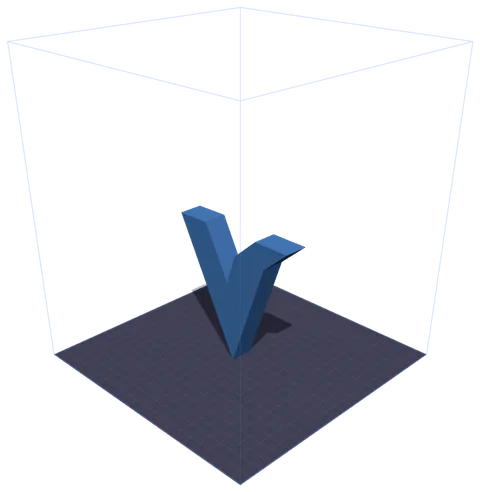
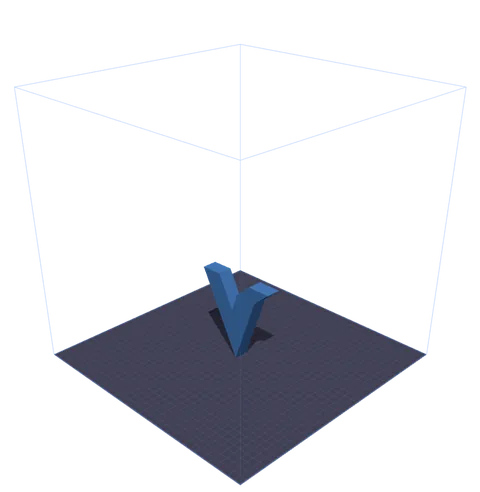
Одна модель, две предустановки. Каркасная коробка — реальная область печати машины, нарисованная вокруг стола в масштабе, так что оставшееся место видно, а не вычисляется. Четыре принтера заданы заранее; для любого другого выберите «Пользовательский» и введите X, Y и Z.
Часто задаваемые вопросы об инструменте управления печатью.
Да, полностью бесплатно. Print Control работает полностью в вашем браузере — без подписок, регистрации и ограничений использования. Ваши 3D-модели обрабатываются локально и никогда не загружаются на сервер.
Сгенерированный G-code включает правильные последовательности начала/конца, команды температуры, парковку и расчёты экструзии, совместимые с большинством FDM-принтеров на базе Marlin. Всегда проверяйте G-code перед первой печатью на новой машине.
Print Control принимает STL (самый распространённый формат 3D-печати), GLB (двоичный glTF, используемый конвертером SVG в 3D), OBJ (Wavefront), 3MF (3D Manufacturing Format с данными о цвете и материале) и PLY (Polygon File Format, распространён при 3D-сканировании). Перетащите файлы или используйте кнопку загрузки.
Когда вы нажимаете кнопку «Печать» в конвертере SVG в 3D, ваша модель экспортируется как GLB-blob и временно сохраняется в IndexedDB вашего браузера. Print Control автоматически обнаруживает и загружает ожидающую модель при открытии — без скачивания файлов.
Предпросмотр нарезки использует GPU-ускоренную плоскость отсечения, чтобы разрезать модель на каждой высоте слоя. Вы можете просматривать все слои ползунком или воспроизвести анимацию, чтобы увидеть всю печать снизу вверх.
Да. Выберите «Пользовательский» в раскрывающемся списке принтеров и введите размеры стола (X, Y, Z в миллиметрах). Стол принтера и каркас области печати обновятся в соответствии с точными характеристиками вашего принтера.
Сетка (Grid) — лучший универсальный узор. Используйте треугольники (Triangles) для структурных деталей, требующих жёсткости, соты (Honeycomb) для лучшего соотношения прочности к весу и линии (Lines), когда нужна минимальная длительность печати. Для декоративных изделий обычно достаточно плотности 10–20%.