STL-, GLB-, OBJ-, 3MF- oder PLY-Datei hier ablegen
oder zum Durchsuchen klicken — das Modell wird auf dem Druckbett platziert
Schicht 0 / 0
Print Control ist ein kostenloser 3D-Druck-Slicer, der vollständig in deinem Browser läuft – ohne Installation, Konto oder Upload. Er wandelt STL-, OBJ-, 3MF-, PLY- und GLB-Modelle in druckfertigen G-Code um, mit schichtweiser Vorschau, einstellbarer Schichthöhe und Füllung, Stützgenerierung und Vorgaben für beliebte FDM-Drucker wie Ender 3, Prusa, Bambu Lab und Voron. Deine Dateien werden lokal auf deinem Gerät verarbeitet und niemals an einen Server gesendet.
Vom 3D-Modell zum druckfertigen G-Code in vier einfachen Schritten — vollständig in Ihrem Browser.
Lege eine STL-, GLB-, OBJ-, 3MF- oder PLY-Datei ab – oder sende sie direkt aus dem SVG-zu-3D-Konverter über die Schaltfläche „Drucken“.
Wählen Sie Ihren Drucker, stellen Sie Schichthöhe, Füllungsdichte, Temperaturen, Stützen und Haftungstyp ein.
Gehe mit der Echtzeit-Slice-Vorschau durch jede Schicht deines Drucks. Spiele Animationen mit variabler Geschwindigkeit ab.
Druckfertigen G-Code mit Perimetern, Füllung und Temperatursteuerung generieren — herunterladen und drucken.
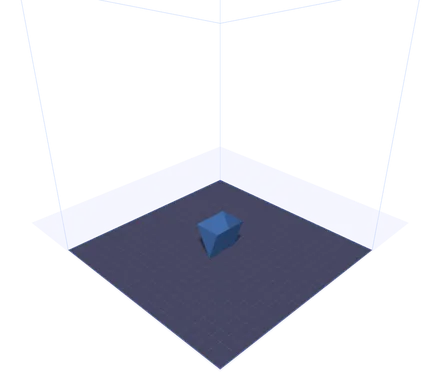
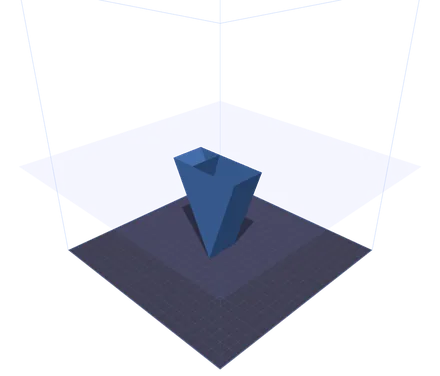
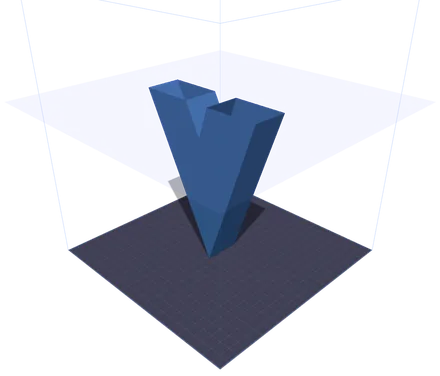
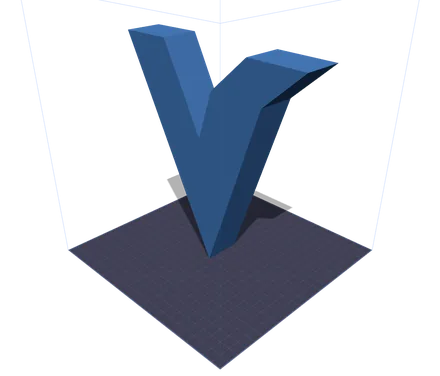
Dasselbe Modell an vier Stellen des Drucks. Die durchscheinende Ebene ist die Höhe, die die Düse erreicht hat — alles darüber wird ausgeblendet. Weiter oben zerfällt der Querschnitt in zwei getrennte Inseln, die beiden Arme des V, und genau dort muss ein Slicer Leerfahrten zwischen ihnen einplanen. Mit dem Regler findest du diese Stelle, bevor du das Filament opferst, nicht danach.
Ein vollständiges browserbasiertes Werkzeug zur Druckvorbereitung mit 3D-Visualisierung in Echtzeit und sofortiger G-Code-Erzeugung.
Sieh dein Modell auf einem präzisen 3D-Druckbett mit Gitterlinien. Unterstützt Ender 3, Prusa i3, Bambu Lab X1, Voron 2.4 und benutzerdefinierte Bettmaße.
Stelle Schichthöhe, Düsendurchmesser, Druckgeschwindigkeit, Fülldichte und -muster, Düsen- und Betttemperaturen, Stützstrukturen und Haftungsart präzise ein.
Gehe mit einer GPU-beschleunigten Schnittebene in Echtzeit Schicht für Schicht durch deinen Druck. Animierte Wiedergabe mit 1x, 2x oder 5x, um jedes Detail zu prüfen.
Erzeuge vollständige G-Code-Dateien mit Start-/Endsequenzen, Perimeter-Verläufen, Gitterfüllung und korrekten Extrusionsberechnungen. Lade sie herunter und sende sie direkt an deinen Drucker.
Klicke im SVG-zu-3D-Konverter auf „Drucken“, und dein Modell wird sofort über IndexedDB übertragen – ohne Downloads oder erneutes Hochladen.
Keine Installation, keine Cloud-Uploads. Alles läuft lokal in deinem Browser mit WebGL und Three.js. Deine Dateien verlassen niemals deinen Rechner.
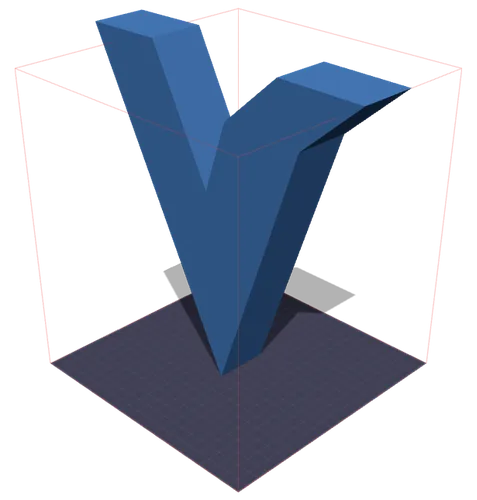
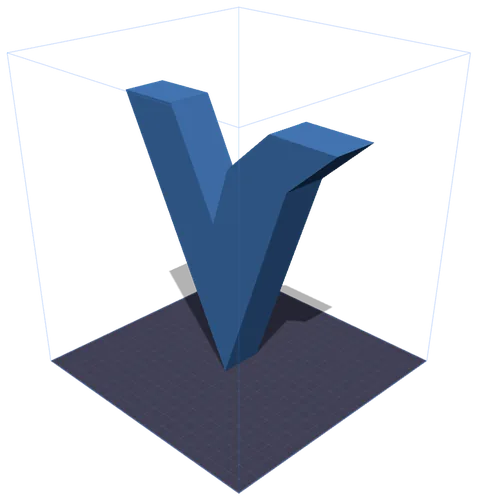
Links: der Bauraum wird rot, sobald das Modell ihn durchbricht. Rechts: ein Druck auf Anpassen verkleinert es proportional, bis es hineinpasst. Die Millimeter stammen aus der gemessenen Bounding Box des Modells — eine GLB trägt keine reale Maßeinheit, deshalb stimmen die angegebene und die gedruckte Größe selten überein.
Alles, was du über die Vorbereitung von Modellen für den FDM-3D-Druck wissen musst.
Die Druckvorbereitung (oder „Print Prep“) ist der Vorgang, ein 3D-Modell zu nehmen und für einen bestimmten 3D-Drucker einzurichten. Dazu gehören das Platzieren des Modells auf der Druckplatte, das Auswählen von Qualitätseinstellungen wie Schichthöhe und Füllung, das Festlegen der Temperaturen für dein Filament und schließlich das Erzeugen der G-Code-Anweisungen, die deinem Drucker genau sagen, wie er sich bewegen soll.
G-Code ist die Standardsprache zur Steuerung von CNC-Maschinen und 3D-Druckern. Jede Zeile enthält einen Befehl: G1 für lineare Bewegungen, M104 zum Einstellen der Temperaturen und G28 für die Referenzfahrt der Achsen. Das Print-Control-Tool erzeugt vollständigen G-Code mit Startsequenzen, schichtweisen Perimetern, Füllmustern und Endsequenzen, bereit für die meisten FDM-Drucker.
PLA (200/60 °C) lässt sich am einfachsten drucken – ideal für Prototypen und dekorative Modelle. PETG (235/80 °C) bietet bessere Haltbarkeit und Hitzebeständigkeit. ABS (240/100 °C) ist stabil, erfordert aber einen geschlossenen Drucker. TPU (225/50 °C) ist flexibel, ideal für Handyhüllen und Dichtungen. Nutze die Material-Vorgabetasten, um sofort die richtigen Temperaturen einzustellen.
Die Schichthöhe bestimmt Druckqualität und -geschwindigkeit. Schichten von 0,1 mm erzeugen glatte Oberflächen, dauern aber länger. 0,2 mm ist das Standardgleichgewicht aus Qualität und Geschwindigkeit. Schichten ab 0,3 mm drucken schneller, zeigen aber sichtbare Schichtlinien. Die Slice-Vorschau zeigt dir genau, wie viele Schichten dein Modell bei jeder Einstellung haben wird.
Das Gitter (Grid) bietet ausgewogene Festigkeit in alle Richtungen. Linien (Lines) drucken am schnellsten, sind aber auf einer Achse schwächer. Dreiecke (Triangles) bieten hervorragende strukturelle Steifigkeit. Wabe (Honeycomb) bietet das beste Verhältnis von Festigkeit zu Gewicht. Für dekorative Drucke reichen 10–20 % Füllung. Funktionsteile benötigen typischerweise 40–60 %.
Aktiviere Stützen für Überhänge über 45°, um Durchhängen und fehlgeschlagene Drucke zu verhindern. Für die Betthaftung bereitet der Skirt die Düse vor, ohne das Modell zu berühren. Der Brim fügt einen flachen Rand für besseren Halt hinzu. Das Raft druckt eine dicke Basisschicht, nützlich für verzugsanfällige Materialien wie ABS.
Integrierte Voreinstellungen für beliebte FDM-Drucker mit Unterstützung für benutzerdefinierte Bettmaße.
220 × 220 × 250 mm
Der beliebteste günstige FDM-Drucker. Ideal für Einsteiger.
250 × 210 × 210 mm
Branchenstandard für Zuverlässigkeit und Druckqualität.
256 × 256 × 256 mm
Schnelles CoreXY mit automatischer Kalibrierung.
350 × 350 × 350 mm
Open-Source-CoreXY für große, hochwertige Drucke.
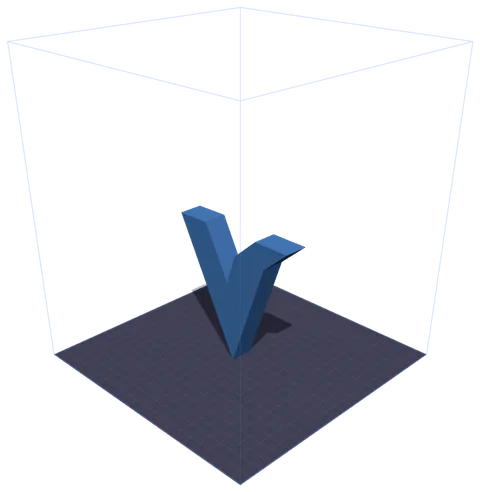
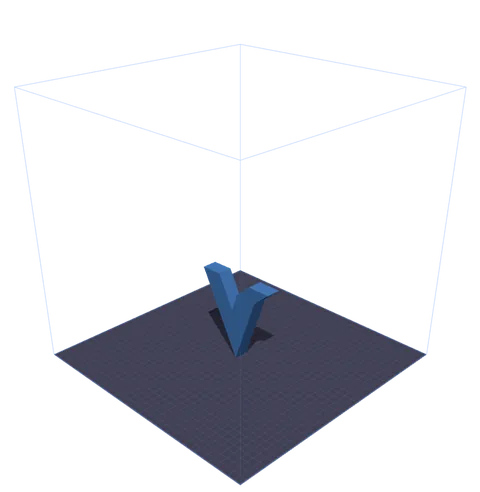
Ein Modell, zwei Voreinstellungen. Der Drahtgitterkäfig ist der echte Bauraum der Maschine, maßstabsgetreu um das Bett gezeichnet — den verbleibenden Platz siehst du also, statt ihn zu berechnen. Vier Drucker sind voreingestellt; für alles andere wählst du Benutzerdefiniert und gibst X, Y und Z ein.
Häufige Fragen zum 3D-Drucksteuerungs-Tool.
Ja, völlig kostenlos. Print Control läuft vollständig in deinem Browser – es gibt keine Abonnements, keine Anmeldungen und keine Nutzungsbeschränkungen. Deine 3D-Modelle werden lokal verarbeitet und niemals auf einen Server hochgeladen.
Der erzeugte G-Code enthält passende Start-/Endsequenzen, Temperaturbefehle, Referenzfahrten und Extrusionsberechnungen, die mit den meisten Marlin-basierten FDM-Druckern kompatibel sind. Prüfe den G-Code immer, bevor du zum ersten Mal auf einer neuen Maschine druckst.
Print Control akzeptiert STL (das gängigste 3D-Druckformat), GLB (binäres glTF, vom SVG-zu-3D-Konverter verwendet), OBJ (Wavefront), 3MF (3D Manufacturing Format mit Farb- und Materialdaten) und PLY (Polygon File Format, häufig beim 3D-Scannen). Ziehe die Dateien per Drag-and-drop oder nutze die Upload-Schaltfläche.
Wenn du im SVG-zu-3D-Konverter auf „Drucken“ klickst, wird dein Modell als GLB-Blob exportiert und vorübergehend in der IndexedDB deines Browsers gespeichert. Print Control erkennt und lädt das ausstehende Modell beim Öffnen automatisch – ohne Datei-Downloads.
Die Slice-Vorschau nutzt eine GPU-beschleunigte Schnittebene, um dein Modell in jeder Schichthöhe zu schneiden. Du kannst mit dem Schieberegler durch alle Schichten gehen oder eine Animation abspielen, um den gesamten Druck von unten nach oben zu betrachten.
Ja. Wähle „Benutzerdefiniert“ im Drucker-Dropdown und gib deine Bettmaße ein (X, Y, Z in Millimetern). Das Druckbett und das Bauraum-Drahtgitter passen sich exakt an die Spezifikationen deines Druckers an.
Das Gitter (Grid) ist das beste Allzweckmuster. Verwende Dreiecke (Triangles) für Strukturteile, die Steifigkeit benötigen, Wabe (Honeycomb) für das beste Verhältnis von Festigkeit zu Gewicht und Linien (Lines), wenn du die kürzeste Druckzeit möchtest. Für dekorative Objekte reicht meist eine Dichte von 10–20 %.